How to Make Renders Look Realistic: 4 Tips for Your Room

Light, materials, camera angle and small objects decide whether a 3D render looks like a photo. Then render your own room in Home Planner.
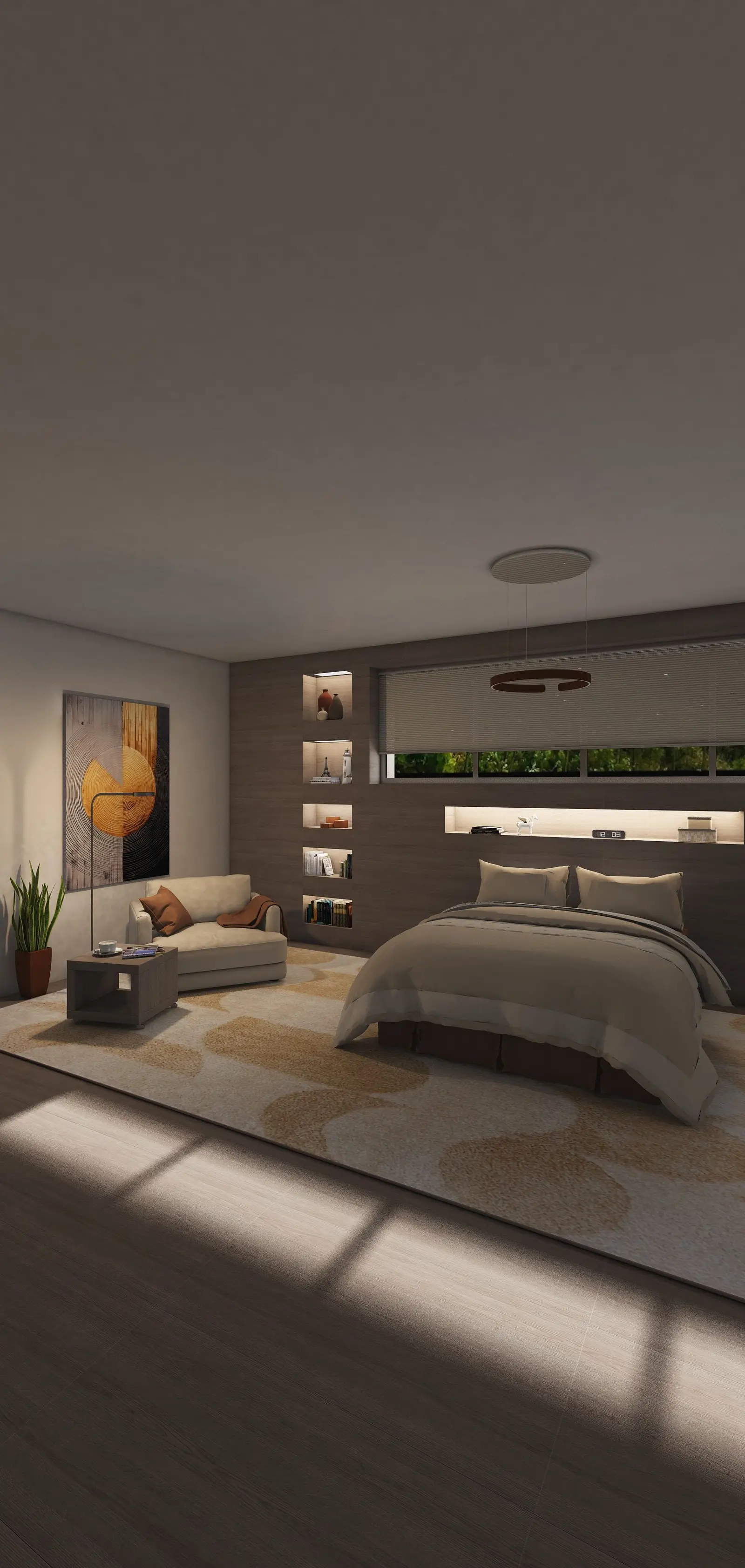
Your room is planned, but the 3D view still looks like a model, not a home. A render shows it as a photo before you buy anything. Here is how to make renders look realistic, and how to render your own room in Home Planner.
What is photorealistic rendering?
A render in which light, shadows, reflections and textures behave the way they do in a real room. Home Planner renders now give you:
- Lighting with soft shadows and accurate highlights
- Reflections and textures that react to light like real materials
- Depth: subtle shading, so the room does not look flat
- Detail in fabrics, wood grain and wall surfaces
What does a realistic living room render show that a screenshot does not?
Light and depth. Build a simple living room and save the same view twice:
- A screenshot from the editor
- A 4K render from the app
The screenshot is clean and clear. The render adds shadows, reflections and texture, and can pass for a photo of a finished room.
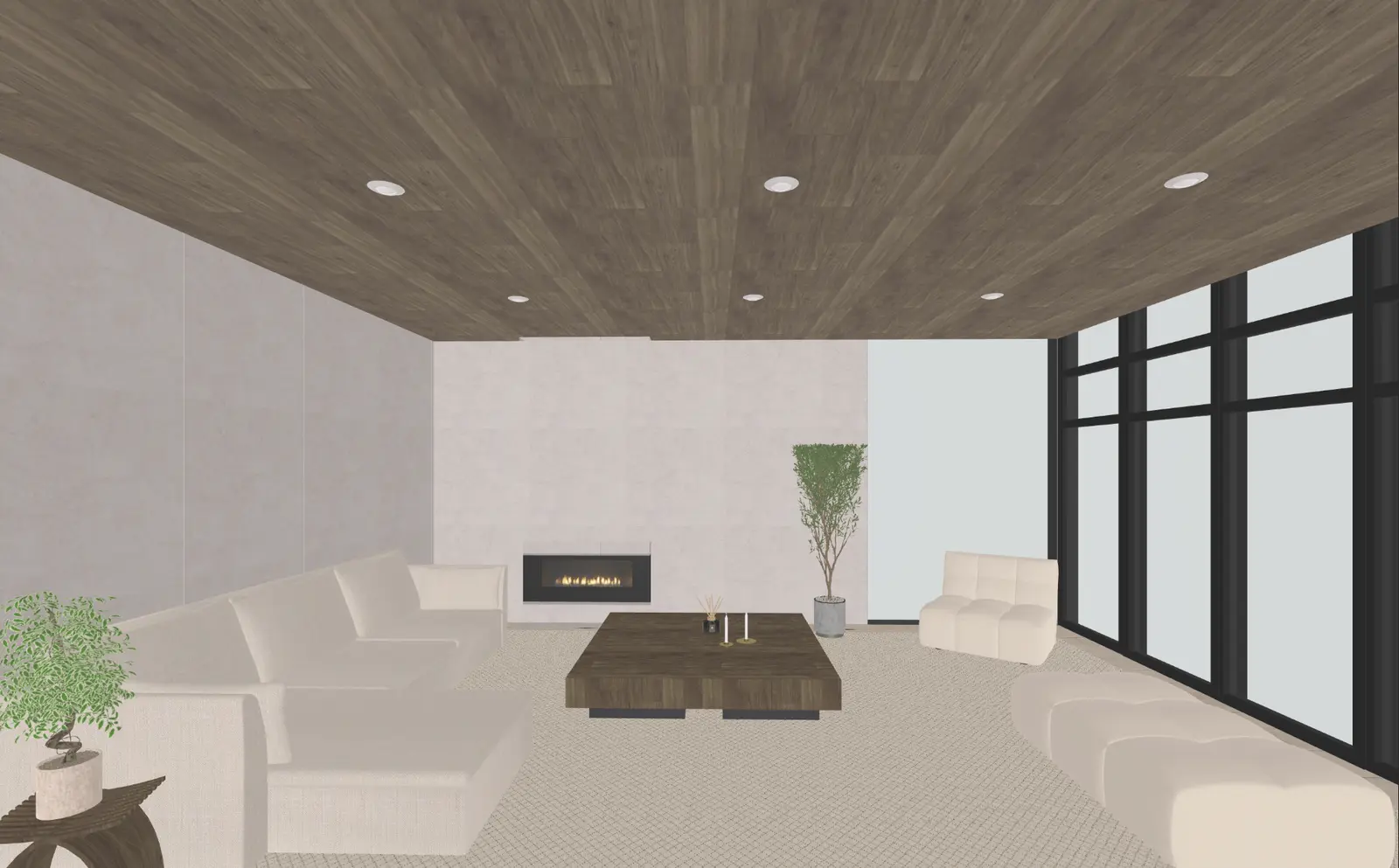
The editor screenshot. Render the same view and compare.
How do you make 3D renders more realistic?
Work on four things: lighting, materials, camera angle and small objects.
Light it like a real room. Lighting matters most. Use large windows, mix warm and cool light sources, and check where shadows fall.
Choose materials with texture. Wood grain, stone, metal, matte and gloss all react to light differently.
Shoot from eye level. Not from above: a person's height gives natural perspective and a sense of space.
Add small objects. A throw blanket, a mug, an open book. Small details make the room look lived in.
Common mistake: no windows and no lamps. Home Planner can warn that the photo will be dark. Select Add Lights, not Continue Anyway.
Why use rendering at all?
- See your design as a real room before you commit to it.
- Test how colours, layouts and materials work together.
- Share the result on social media.
- Show a contractor, or your clients, what the space will look like.
How to render a room in Home Planner
- Design your room and open it in 3D.
- Select the camera button and choose Photo.
- Choose the quality (HD, Full HD or 4K Ultra HD), the Ratio and the light, for example Cloudy Day.
- Take the photo. Home Planner can notify you when the render is ready.
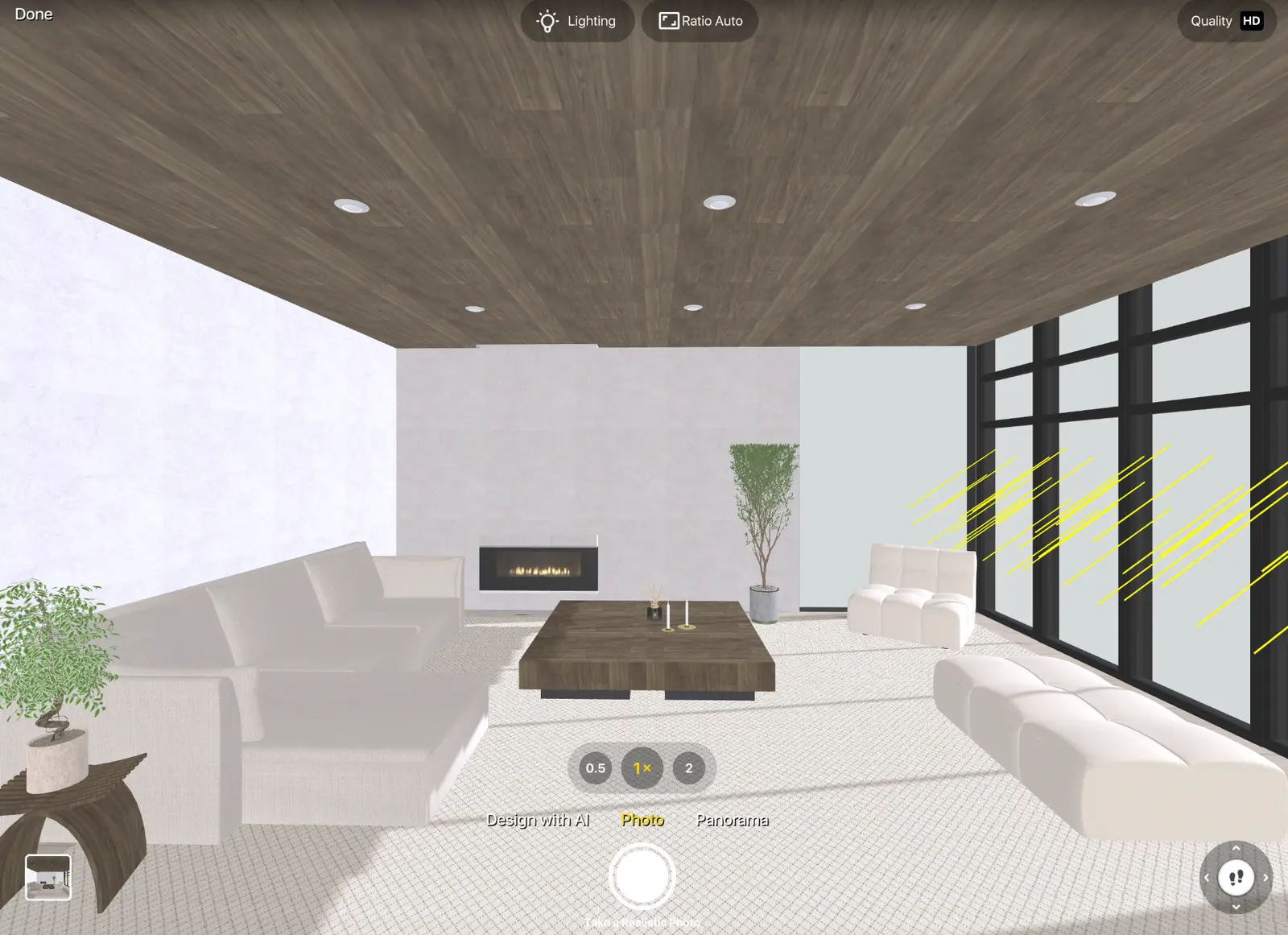
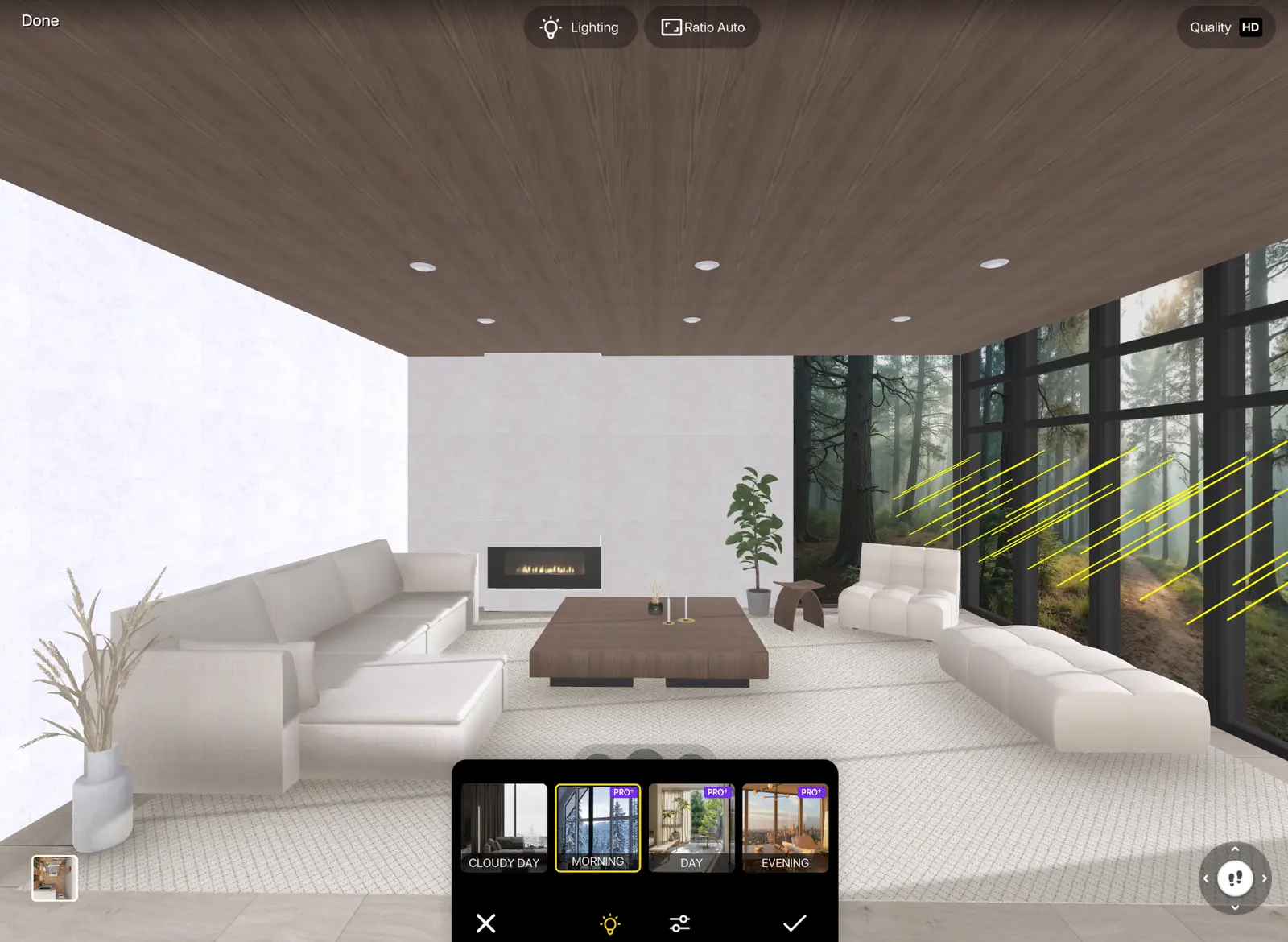
Lighting settings: a light mode, then brightness and colour temperature.
HD photos are free to start; Full HD needs PRO, 4K needs PRO+. Every setting is in how to make a 3D render of a room. View the result on a computer screen: details show better there.
A wrong sofa is easier to fix in a render than in a finished room. Try it on your own plan in Home Planner: measure your space, draw it in 2D and 3D, furnish it with real brands or start from a ready-made bedroom, bathroom or living room layout, then render it.

Try it on your own project
Free room planner and interior design app