Kids Room Planner: see your child's room in 3D before you buy a bed
Home Planner is a kids room planner for every age, from the first nursery to a teen bedroom: draw the room, place cribs, beds, desks and storage at their true sizes, and walk through it in 3D before you buy.
4.6App Store · 300K+ ratings
On your phone too
Point the phone camera here to install, then scan your rooms
Downloads across all stores; countries where the App Store carries the app.
Plan your kids' room in four steps
1.
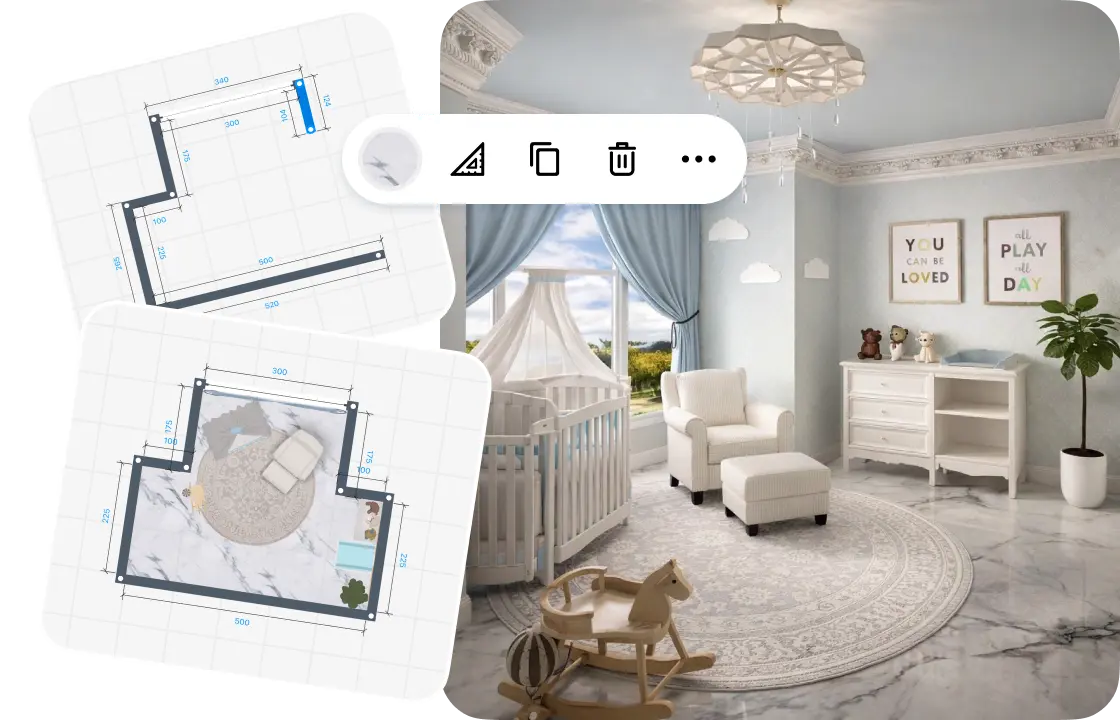
Draw or scan the room
Draw the walls on a grid, or scan the room to see it in 3D. Add doors, windows and the ceiling height.
2.
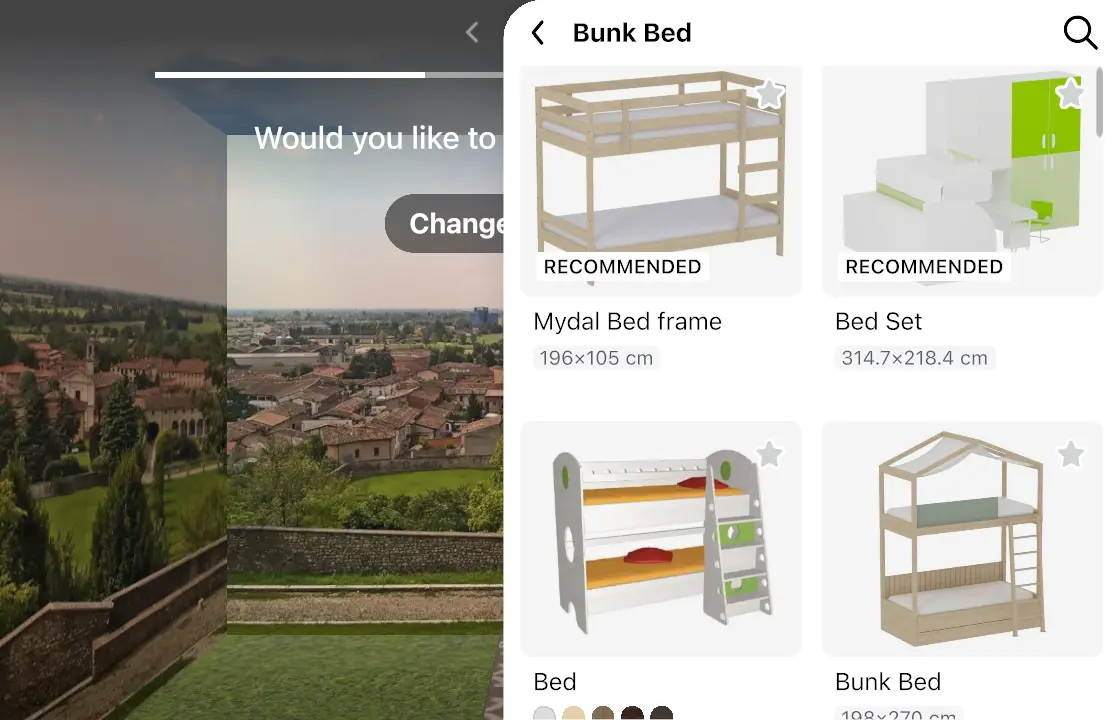
Add furniture and decor
Place a crib or a bed, a desk and storage, then add a rug, toys and wall art. Each piece keeps its real size.
3.
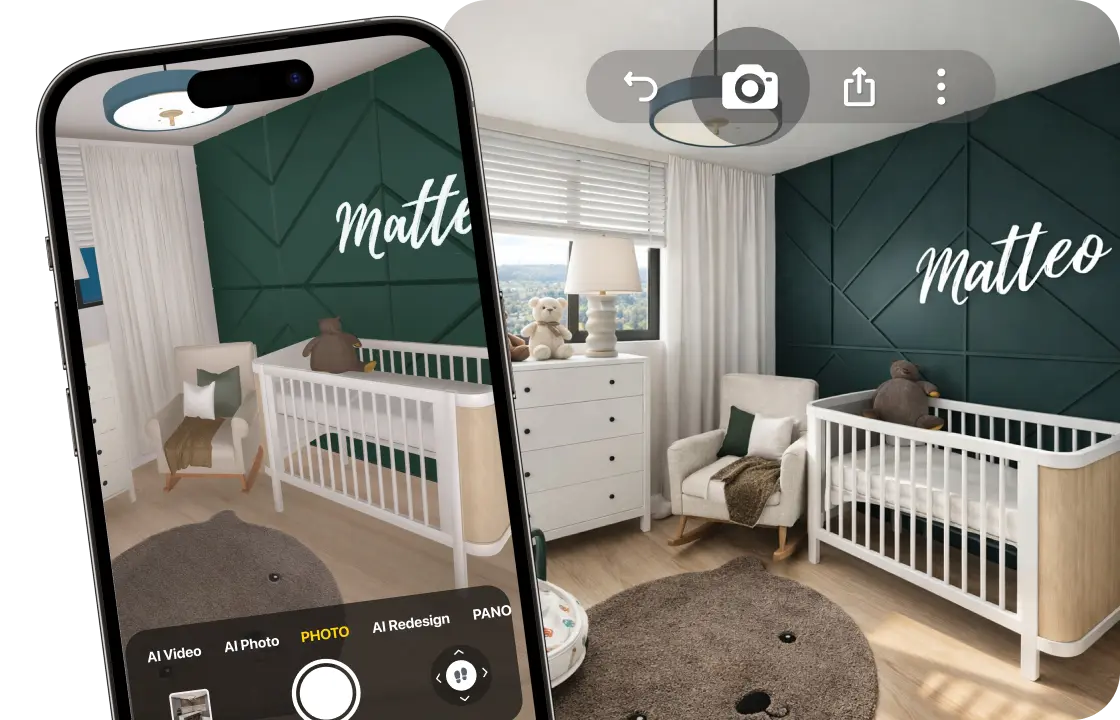
See it in 3D
Walk through the room and make realistic renders, so you see how it looks before you buy.
4.
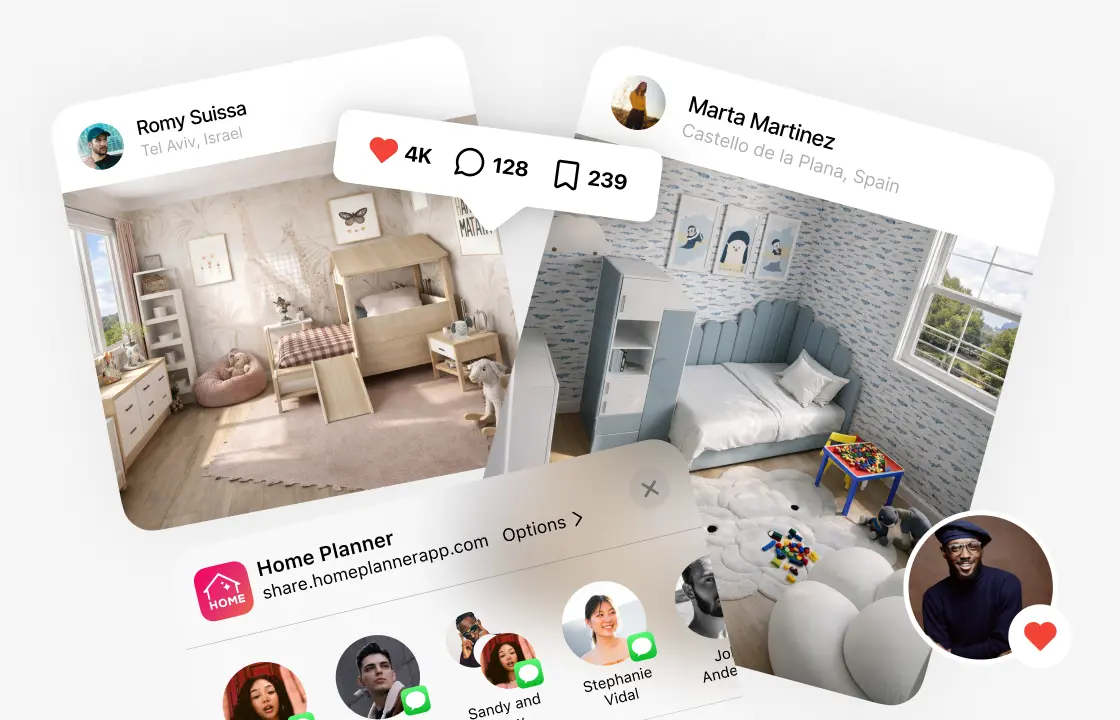
Share your plan
Send your family a link, or download a PDF with the plan and a shopping list (free with a watermark).
1.
Draw or scan the room
Draw the walls on a grid, or scan the room to see it in 3D. Add doors, windows and the ceiling height.
2.
Add furniture and decor
Place a crib or a bed, a desk and storage, then add a rug, toys and wall art. Each piece keeps its real size.
3.
See it in 3D
Walk through the room and make realistic renders, so you see how it looks before you buy.
4.
Share your plan
Send your family a link, or download a PDF with the plan and a shopping list (free with a watermark).
What decides if a kids' room works:The bed fits, ceiling includedA layout for their ageA clear path at nightA room that grows with themA budget you can plan
Start from the real room, ceiling included
Draw the room and furnish it before you assemble a loft bed that's too tall for the ceiling or a wardrobe that blocks the door.
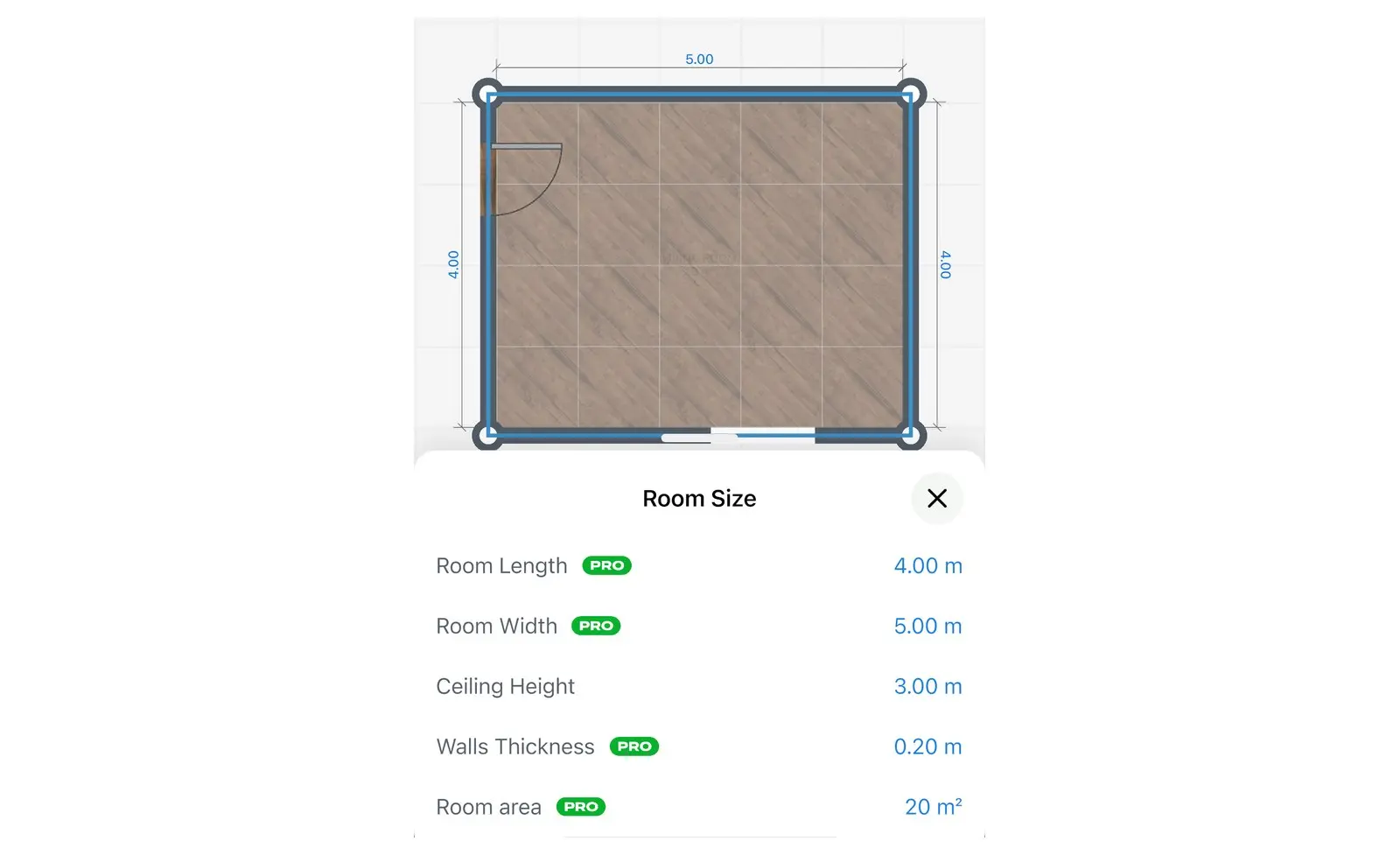
- Add your ceiling height, place a bunk or loft bed, and look at it in 3D.
- No tape measure handy? Walk around the room with your iPhone, iPad or AR-ready Android phone to see it in 3D.
- Scan into a new design and view in 3D
- Furnish a scanned room: PRO
Kids room layout planner: pick the setup for their age
Start from the setup closest to your child's age, then fit it to your walls.
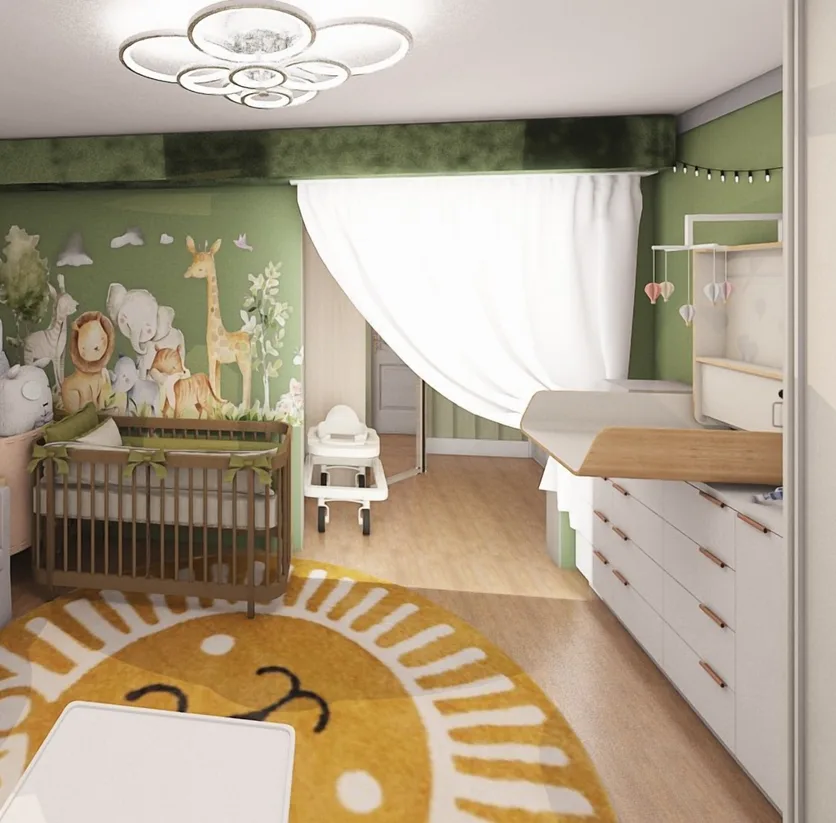
Nursery
A crib, a changing table and a rocking chair, with a clear path to the crib for night feedings.
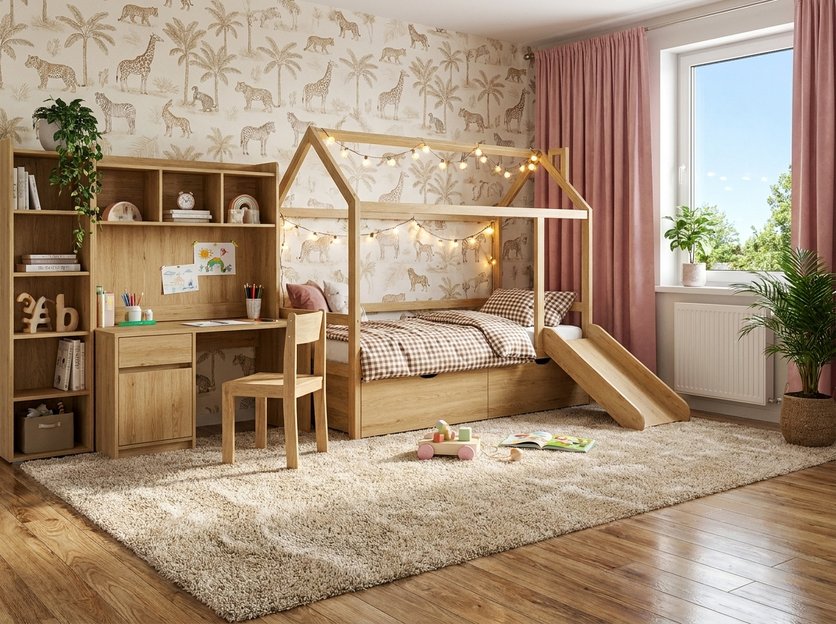
Toddler room
A low bed, a play rug and toy storage at their height.
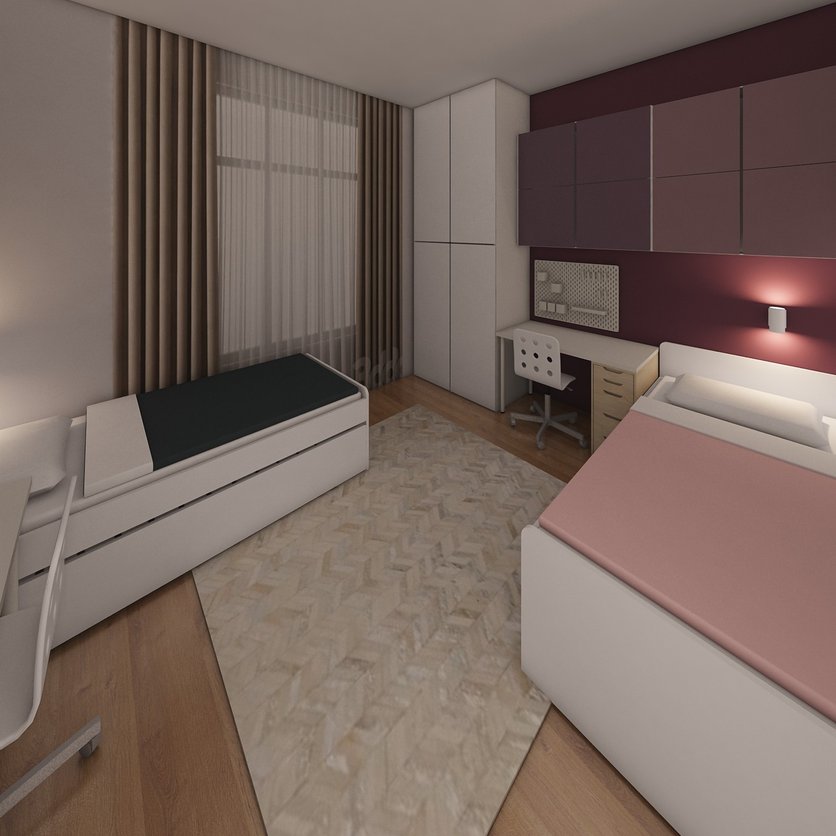
Shared room
Bunk beds or two beds side by side, with storage for each child.
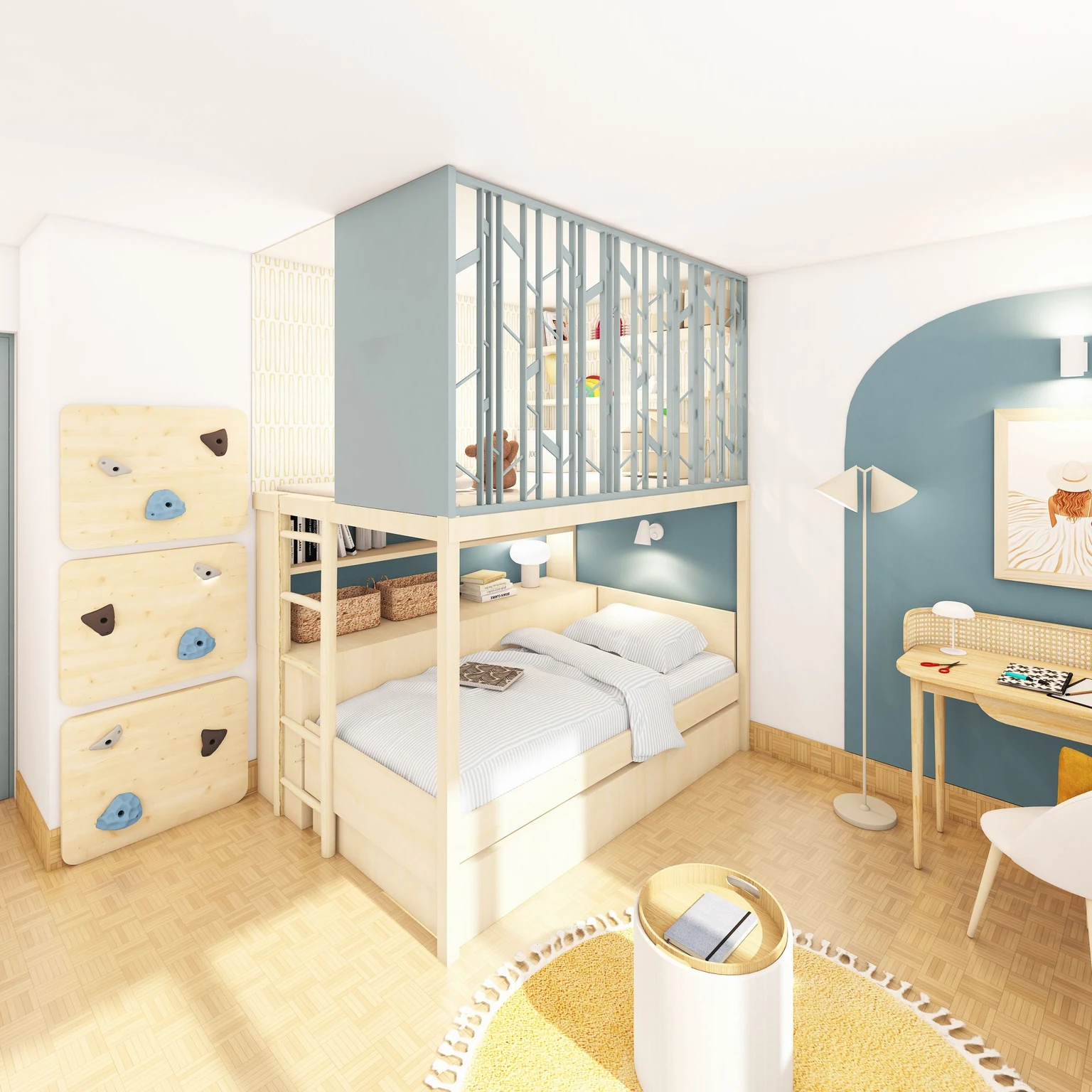
Loft bed
A bed up high with a desk or a play corner underneath to free up floor space.
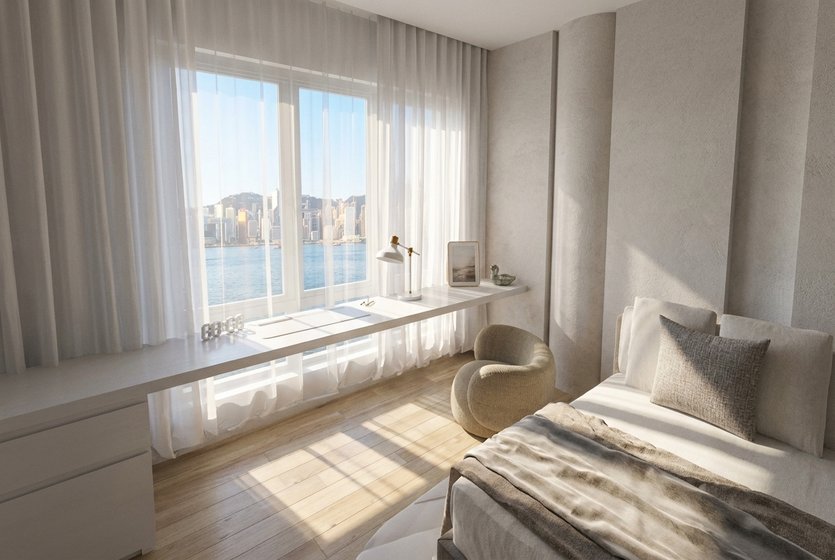
Teen bedroom
A bigger bed, a desk for homework and a comfy spot to hang out with friends.
Keep a clear path to the crib at night
A night walk to the crib shouldn't end at the corner of a dresser. Check the gaps on the plan, not in the dark.
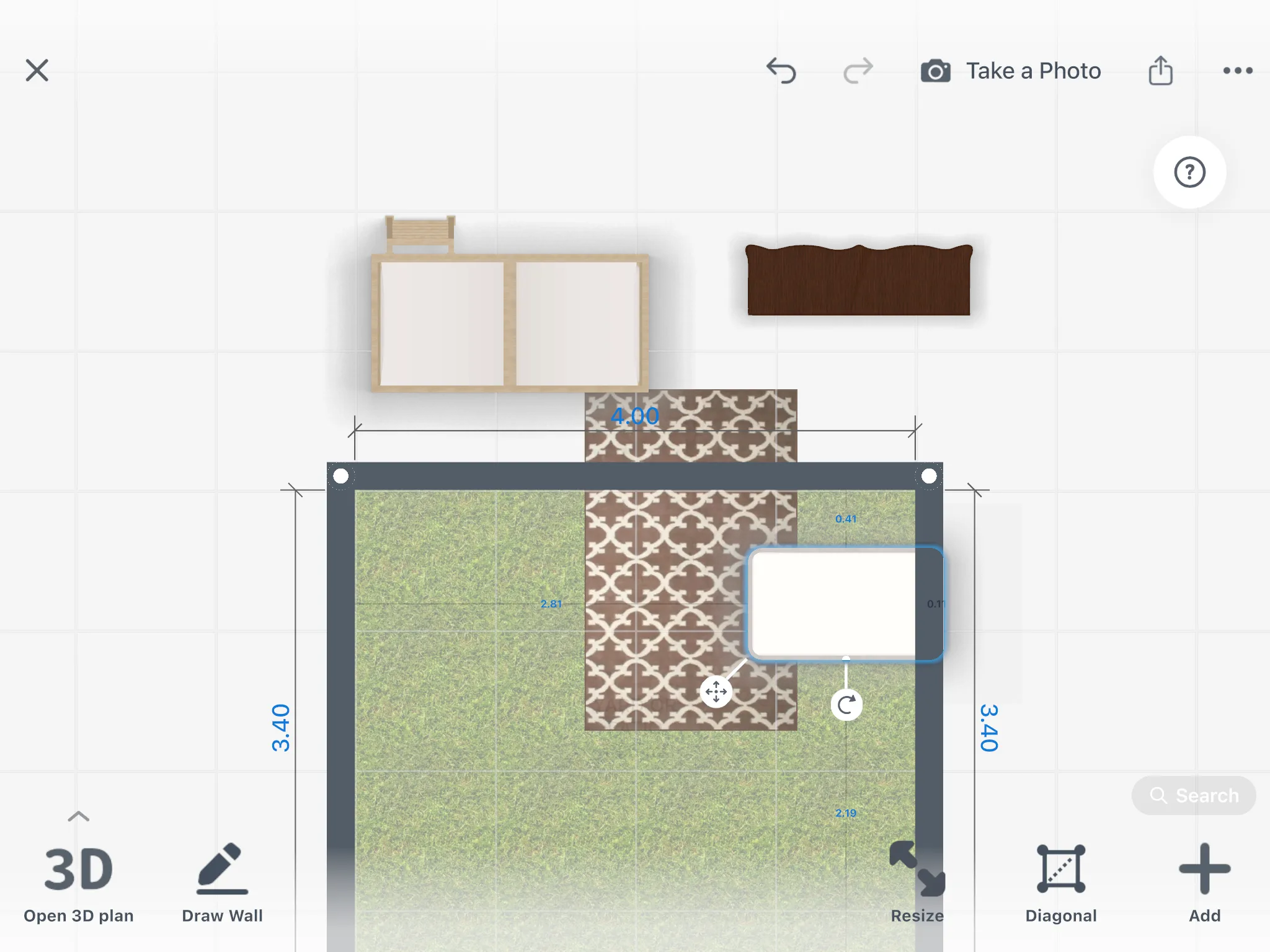
Select a crib, bed or dresser to see how far it is from the walls and other furniture, in 2D and 3D.
Kids' room designs made in Home Planner
Ideas to start your own.
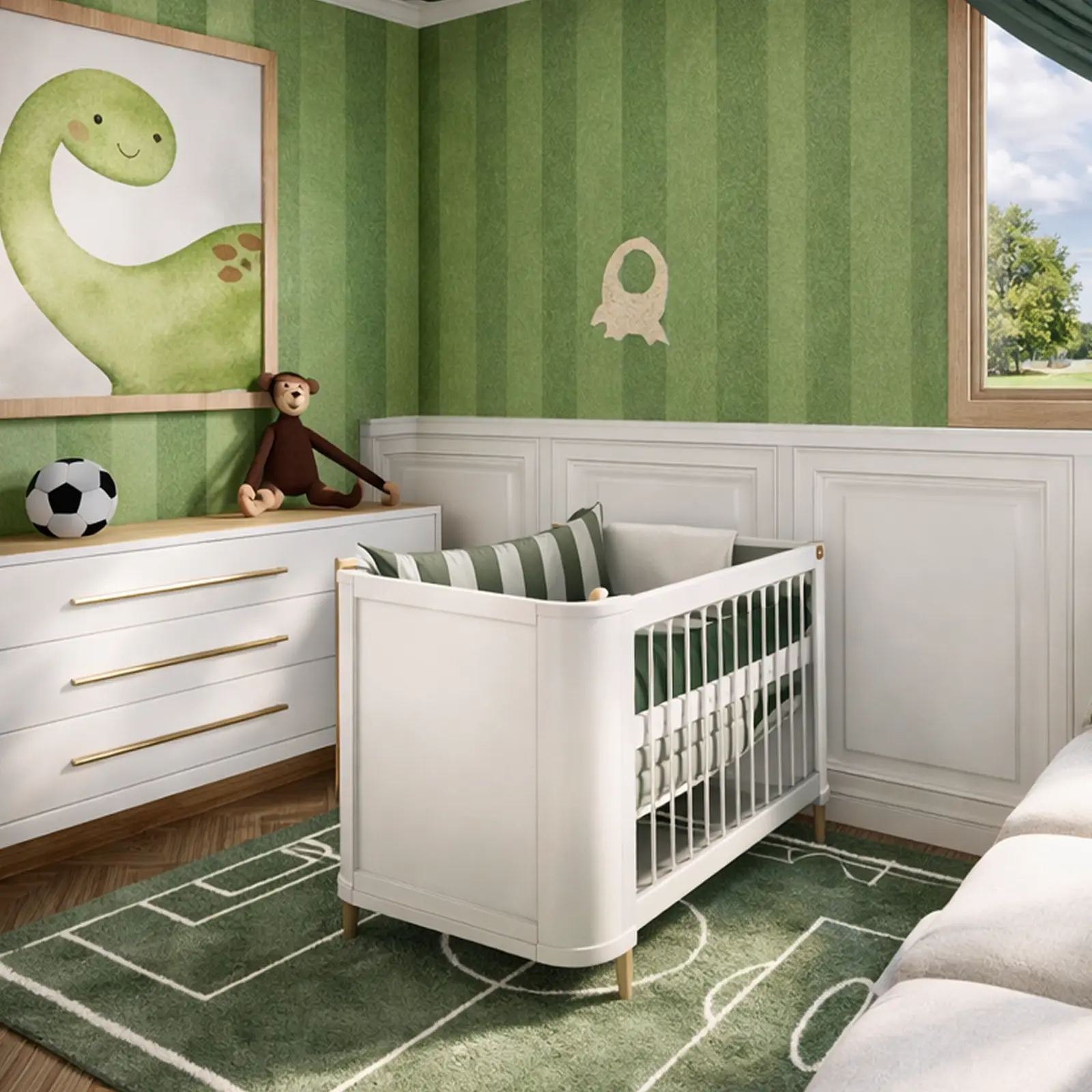
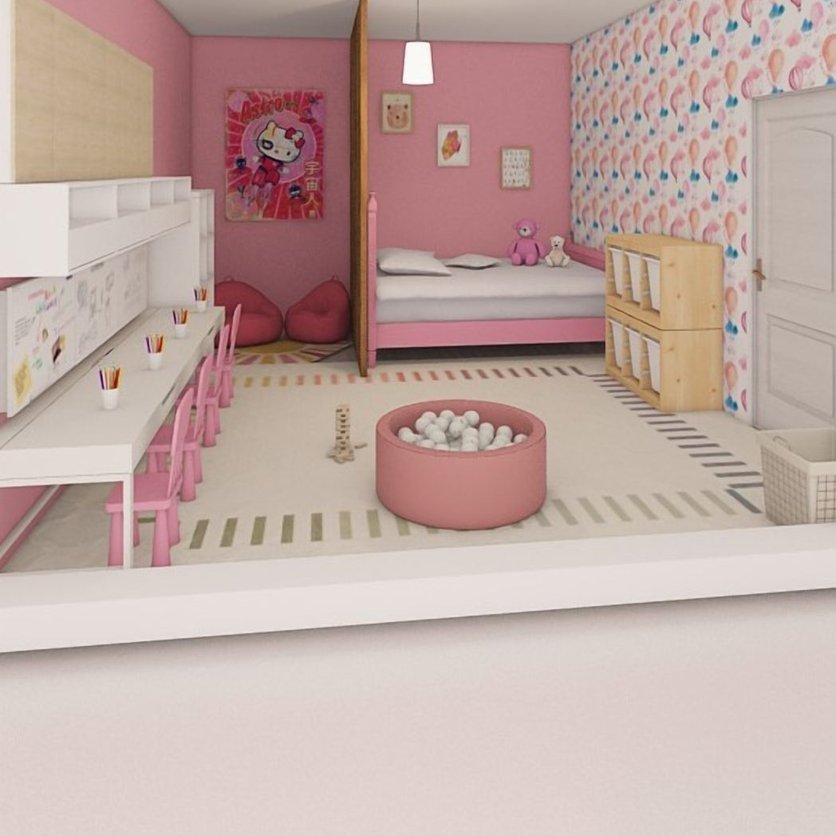
Created in Home Planner
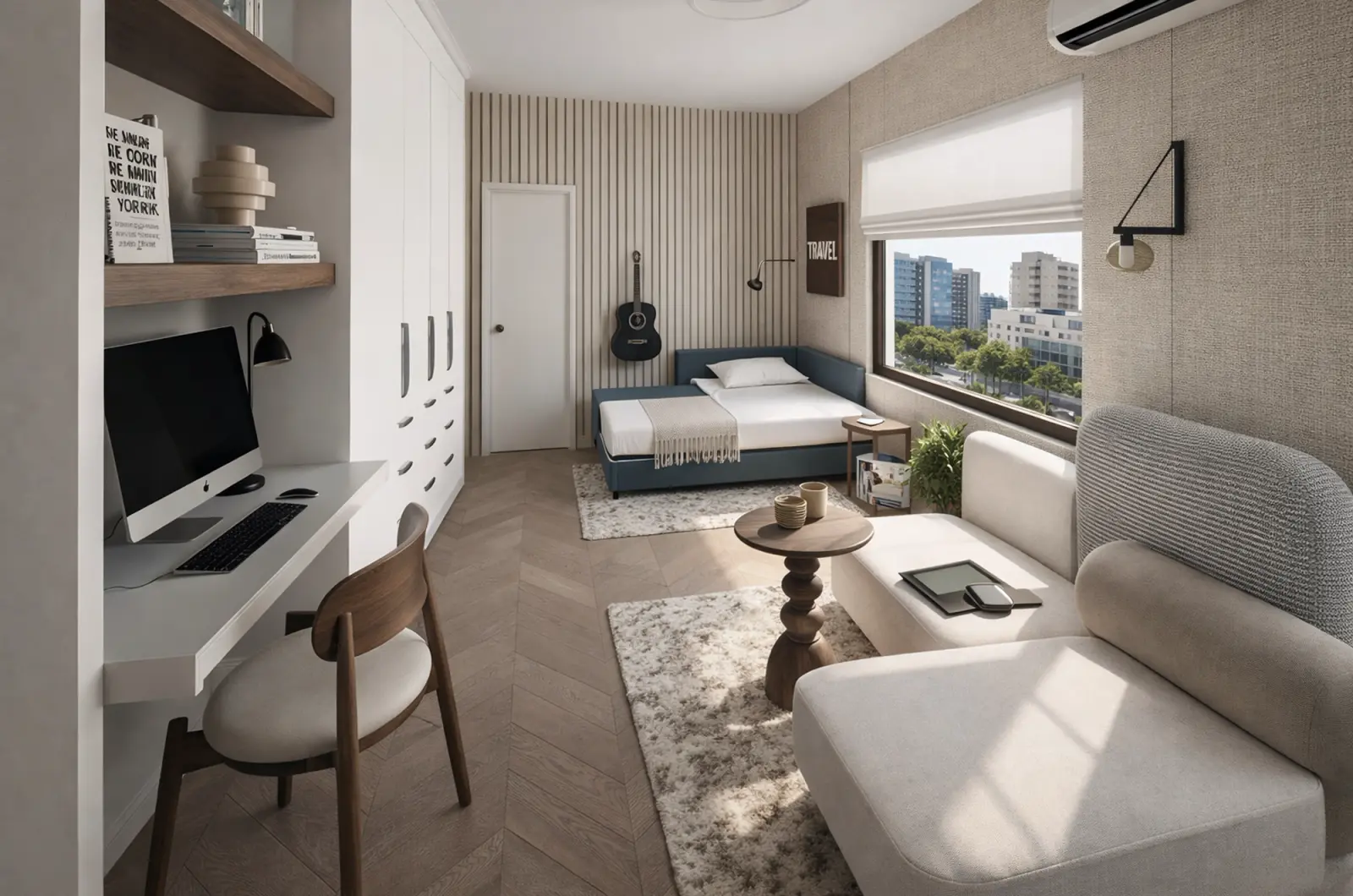
Created in Home Planner
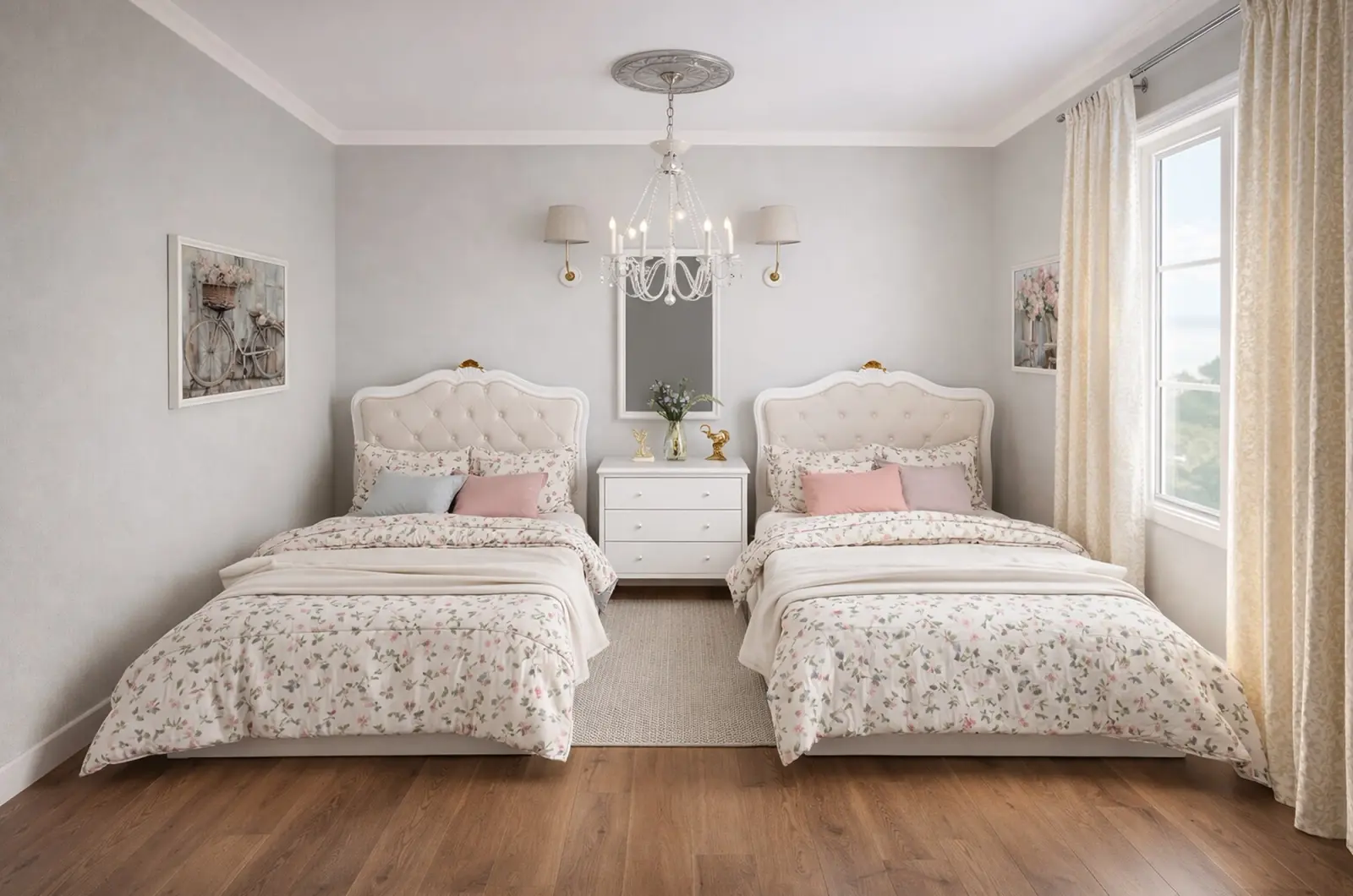
Created in Home Planner
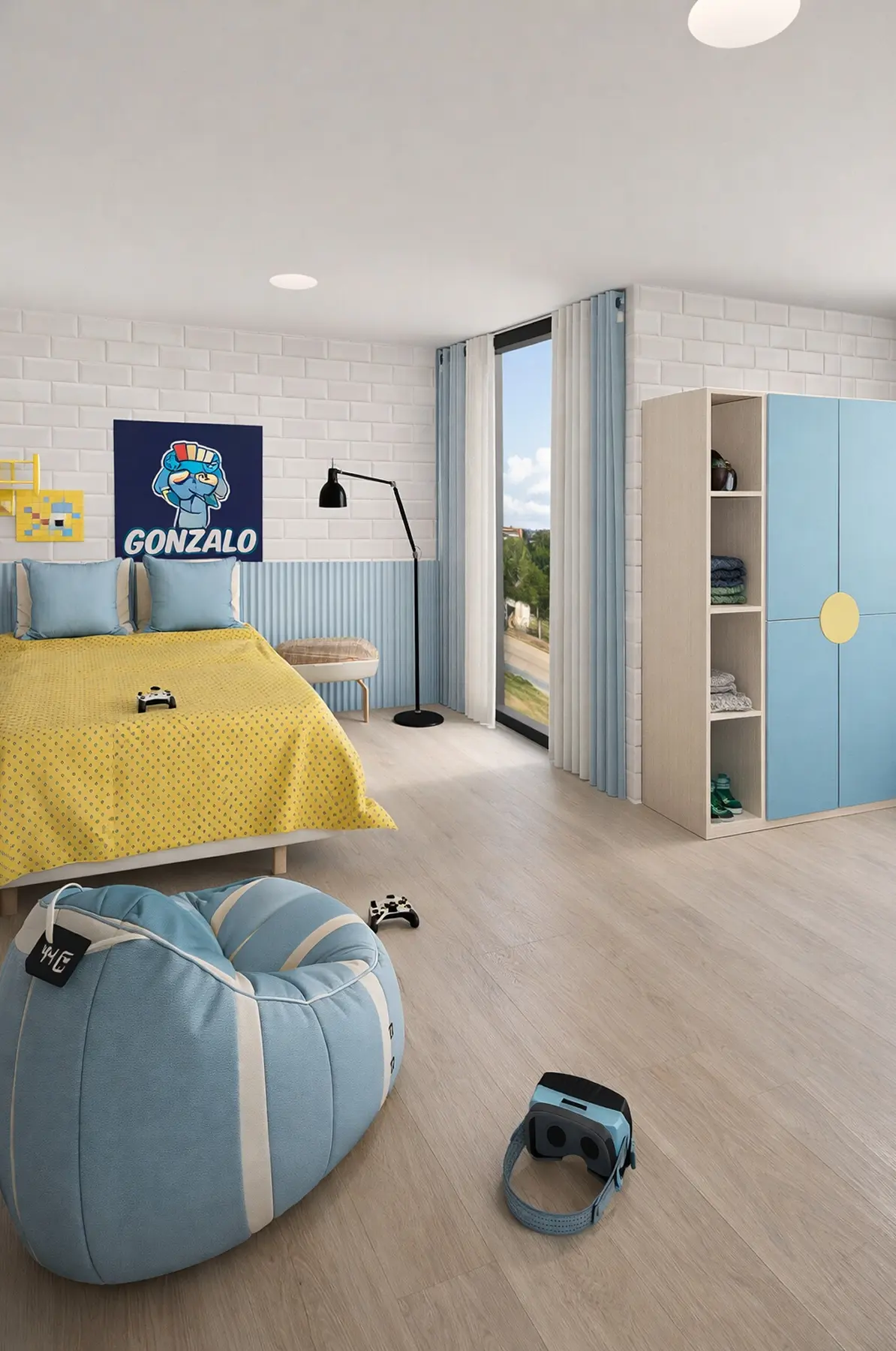
Created in Home Planner
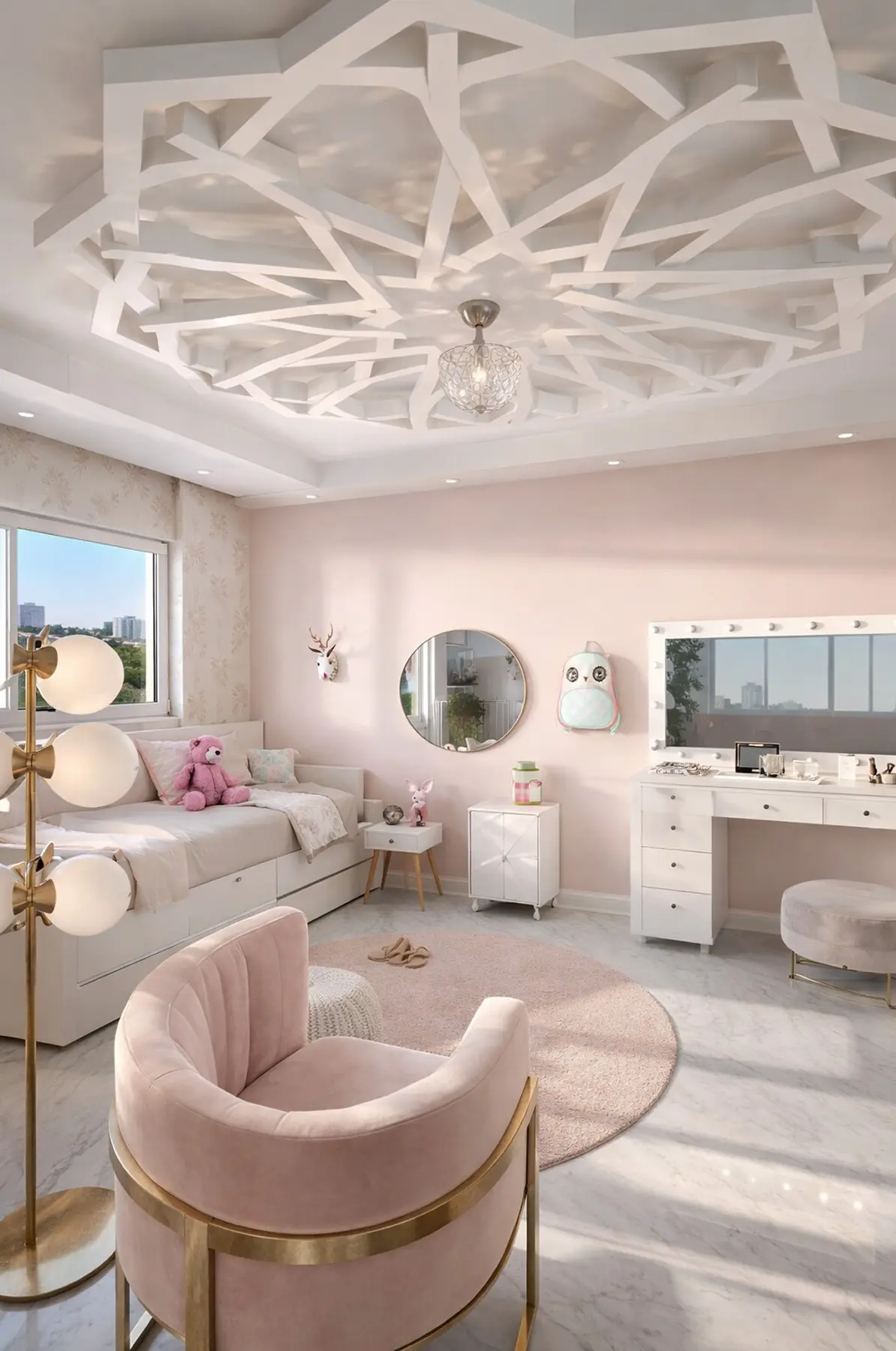
Created in Home Planner
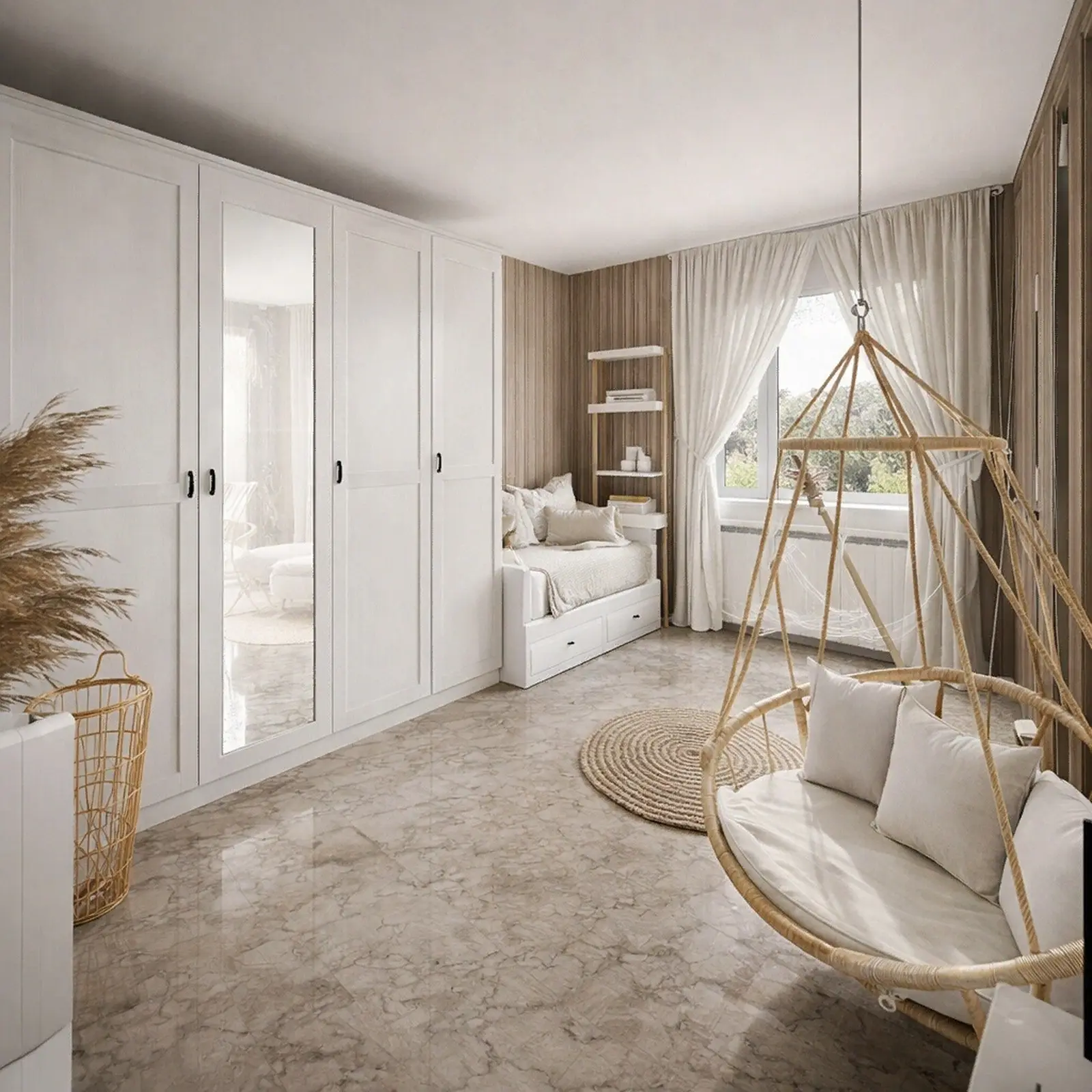
Created in Home Planner
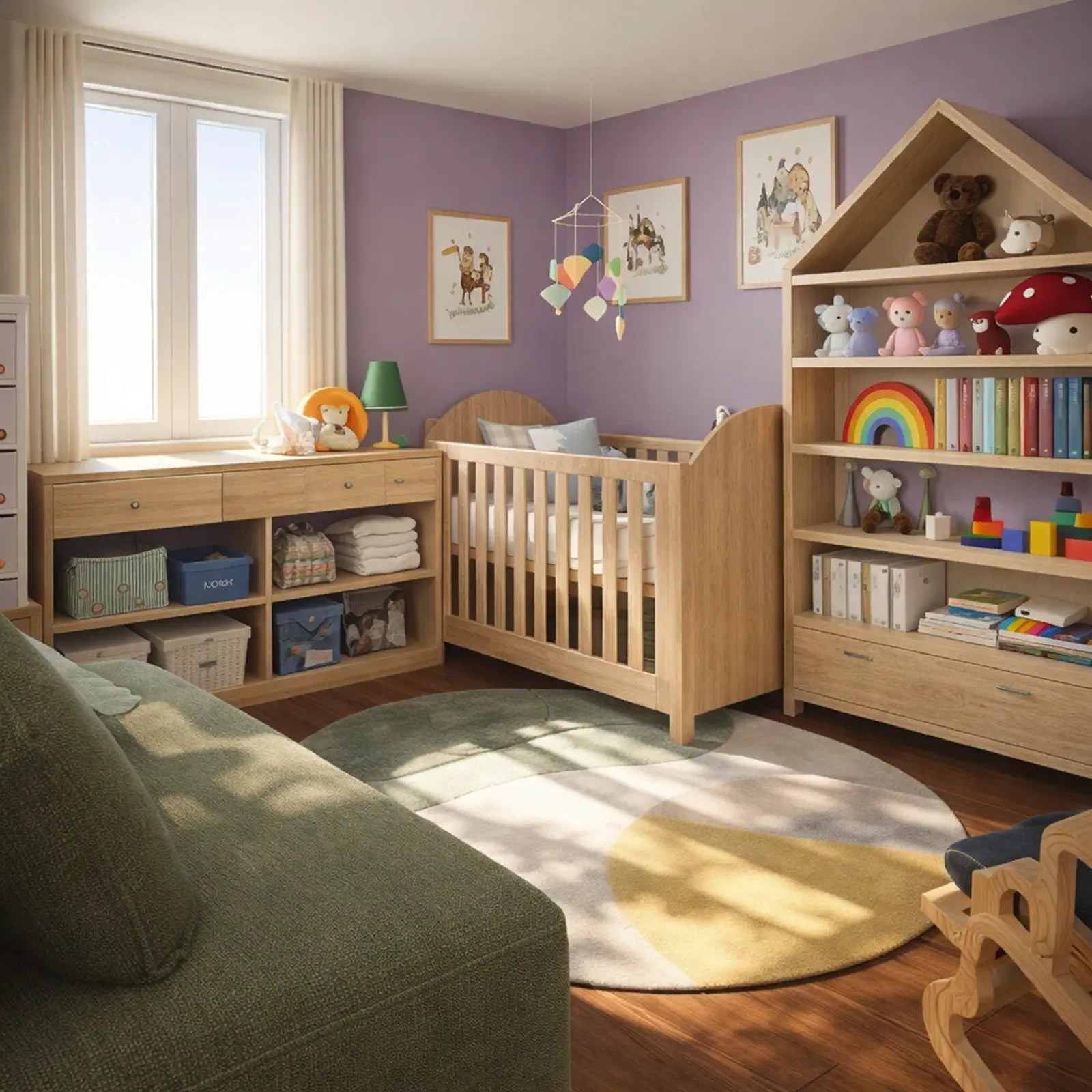
Created in Home Planner
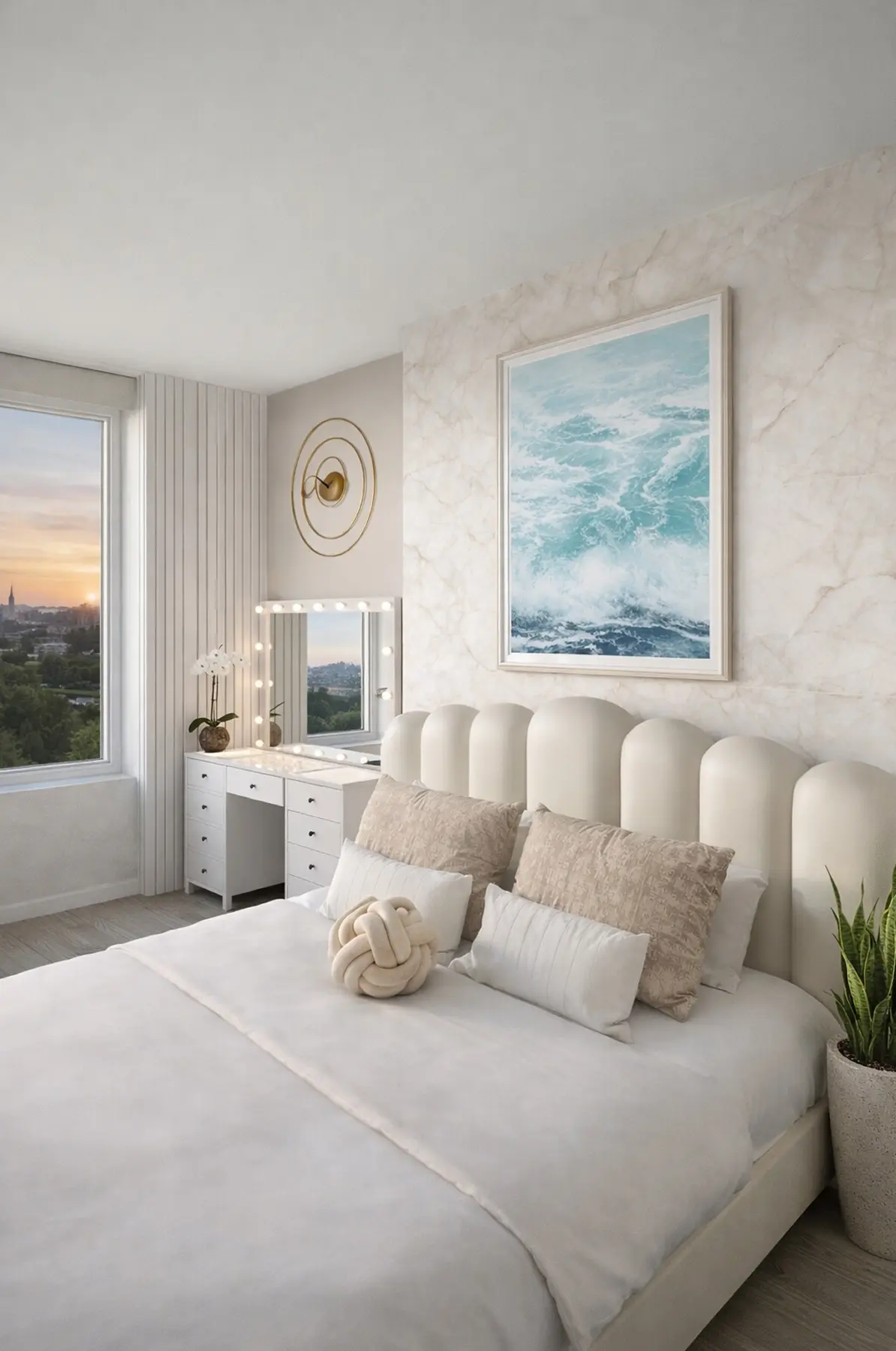
Created in Home Planner
Created in Home Planner
Created in Home Planner
Created in Home Planner
Created in Home Planner
Created in Home Planner
Created in Home Planner
Created in Home Planner
Created in Home Planner
Cribs, bunk beds and desks, true to size
Fill the plan from a catalog of 560,000+ products, so what fits on the plan fits in the room.
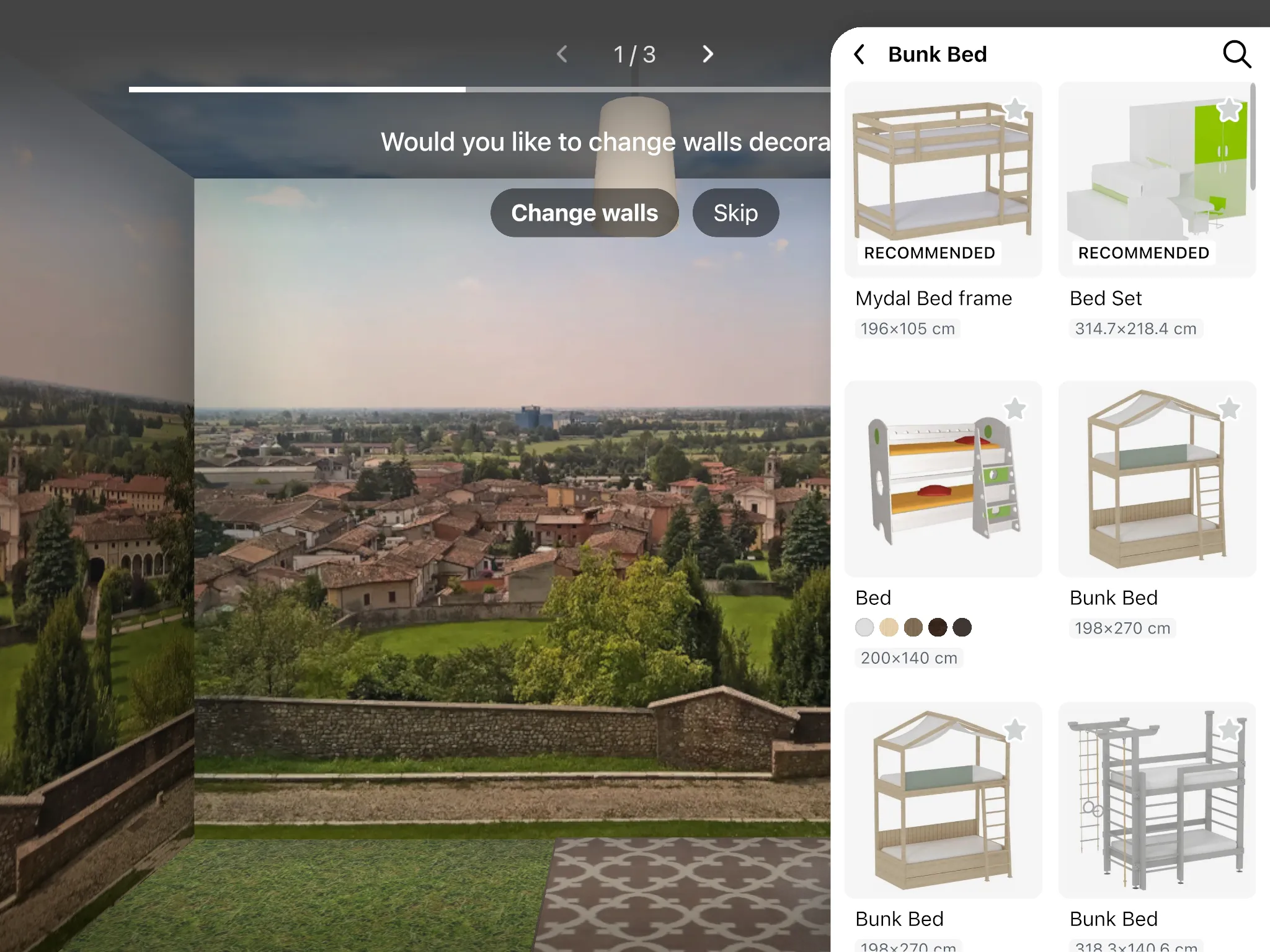
- Cribs, changing tables, high chairs and rocking chairs for the nursery.
- Bunk beds, loft beds, house beds, kids' desks and chairs.
- Toys, play tents, kids' rugs, wall art and wall stickers.
- Part of every catalog category: free
- The full catalog: PRO
Try the colors they asked for before you paint
Try paint colors, wallpaper and wall stickers on your plan in 3D. Or take a photo of the room and let AI Redesign show it in a new style.
- Up to 4 AI redesigns: free
- More colors and your own textures: PRO
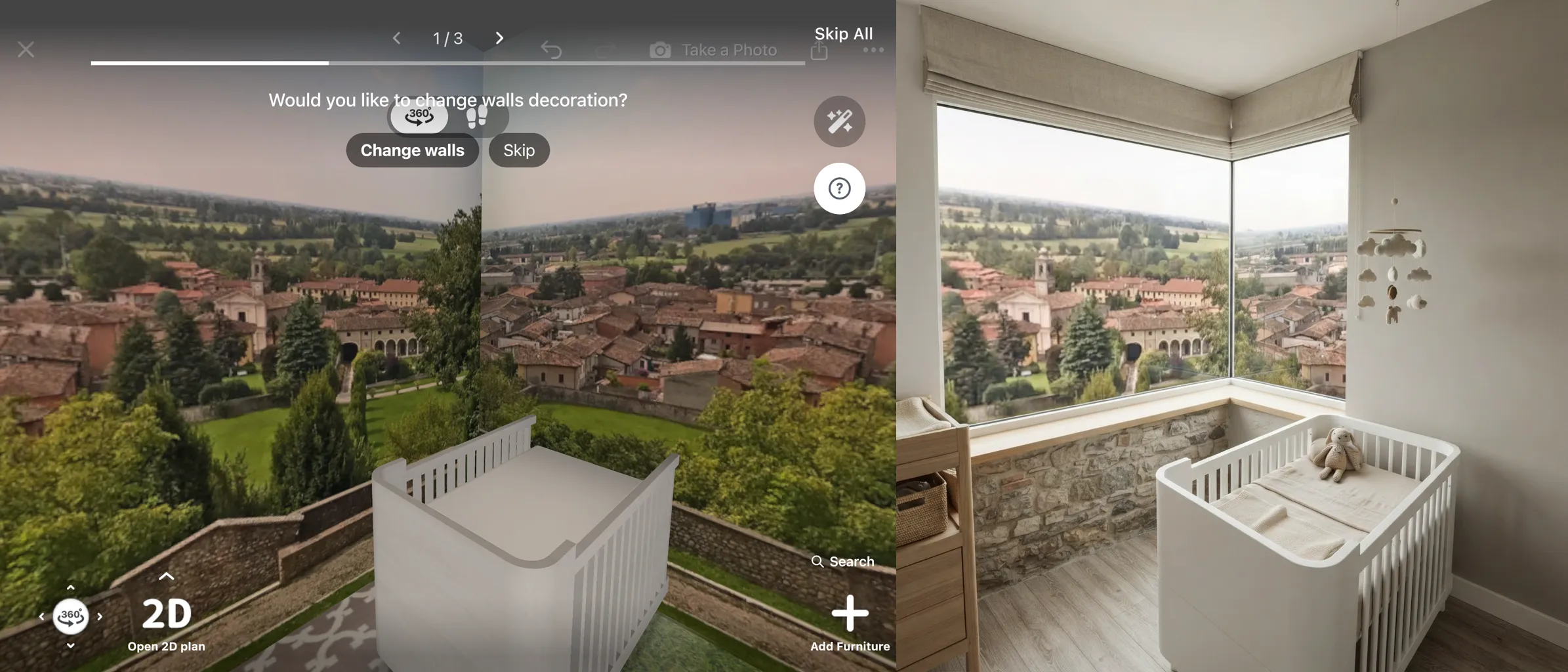
Plan the next room before they outgrow this one
A nursery turns into a big-kid room in a few years. Keep this plan and make a copy for the next stage.
Nursery now
A crib, a changing table and a chair for night feedings.
Big-kid room next
Save a copy of the design, swap the crib for a bed and add a desk. Your first plan stays untouched.
Two kids, one room
Try a bunk bed in one copy and two twin beds in another, then walk through both in 3D.
Each copy counts as a design: up to 10 on the free plan, 20 with PRO.
Ideas for kids room
See all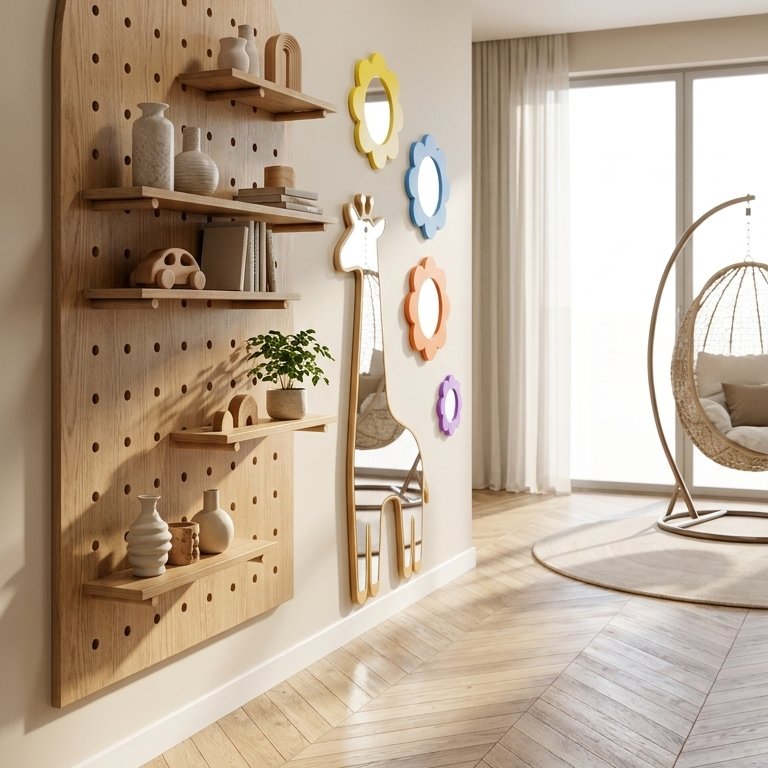
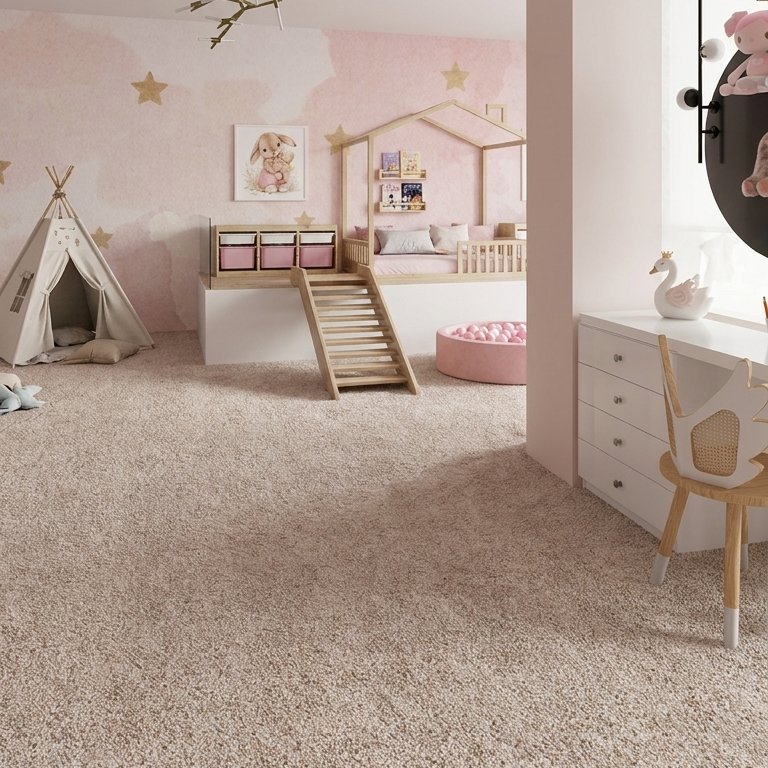
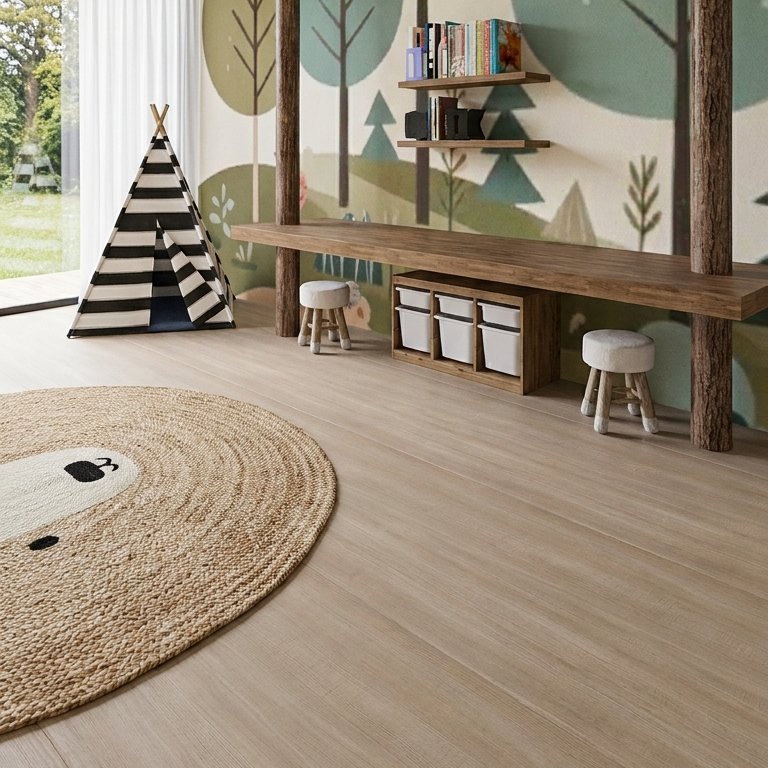
Know what the room costs before you order
Every item you place lands on a shopping list with its price, and the total keeps up with your plan.
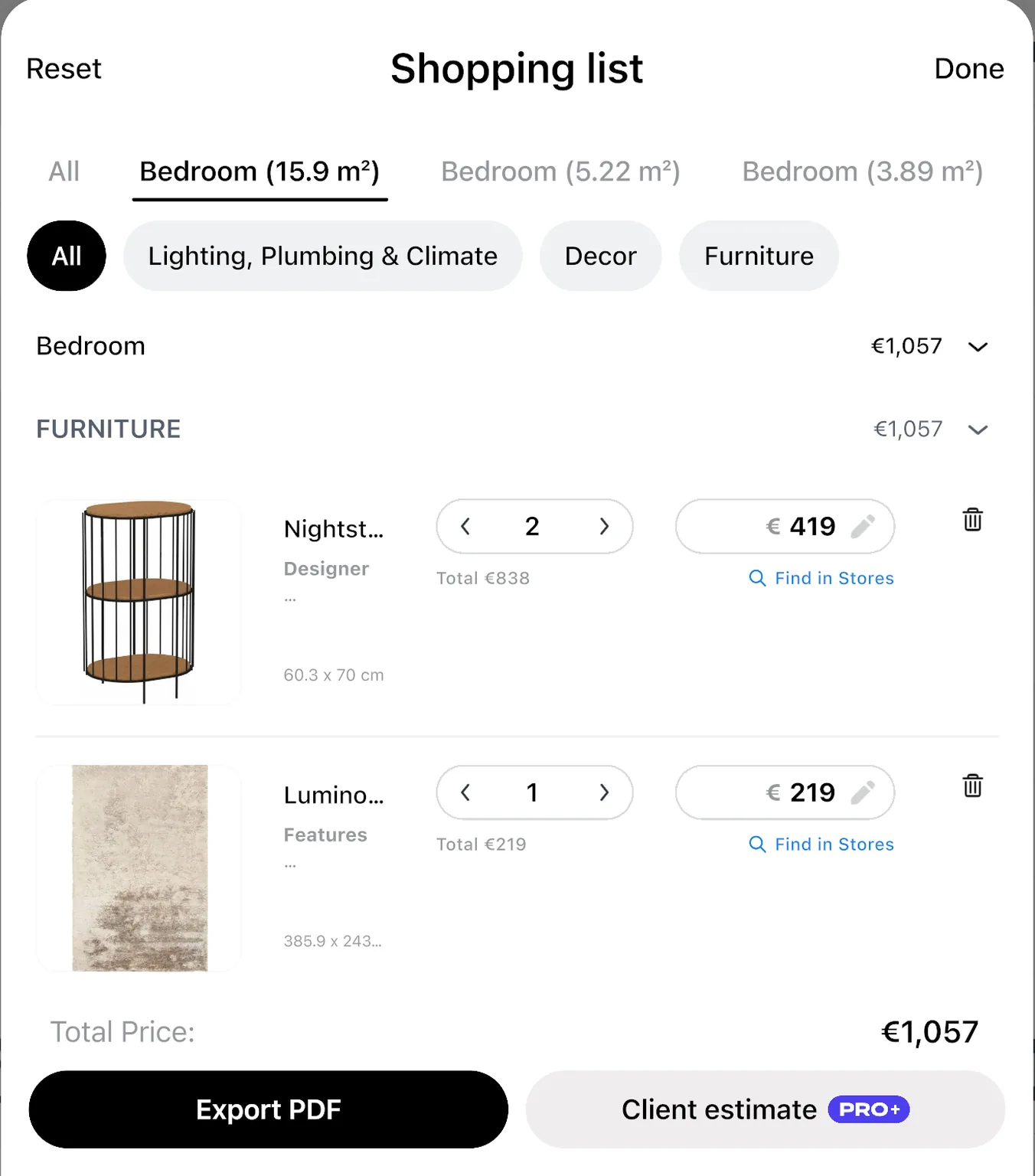
Swap the bunk bed for a cheaper one and see the new total. Select an item in the list to find it in stores.
Treat the prices as a guide and confirm the final price with the store.
- Renovation cost estimate: PRO
Agree on the room with your partner and your child
Settle the bed and the colors before anyone places an order. Share a link that opens in any browser, or invite family to edit the design with you.
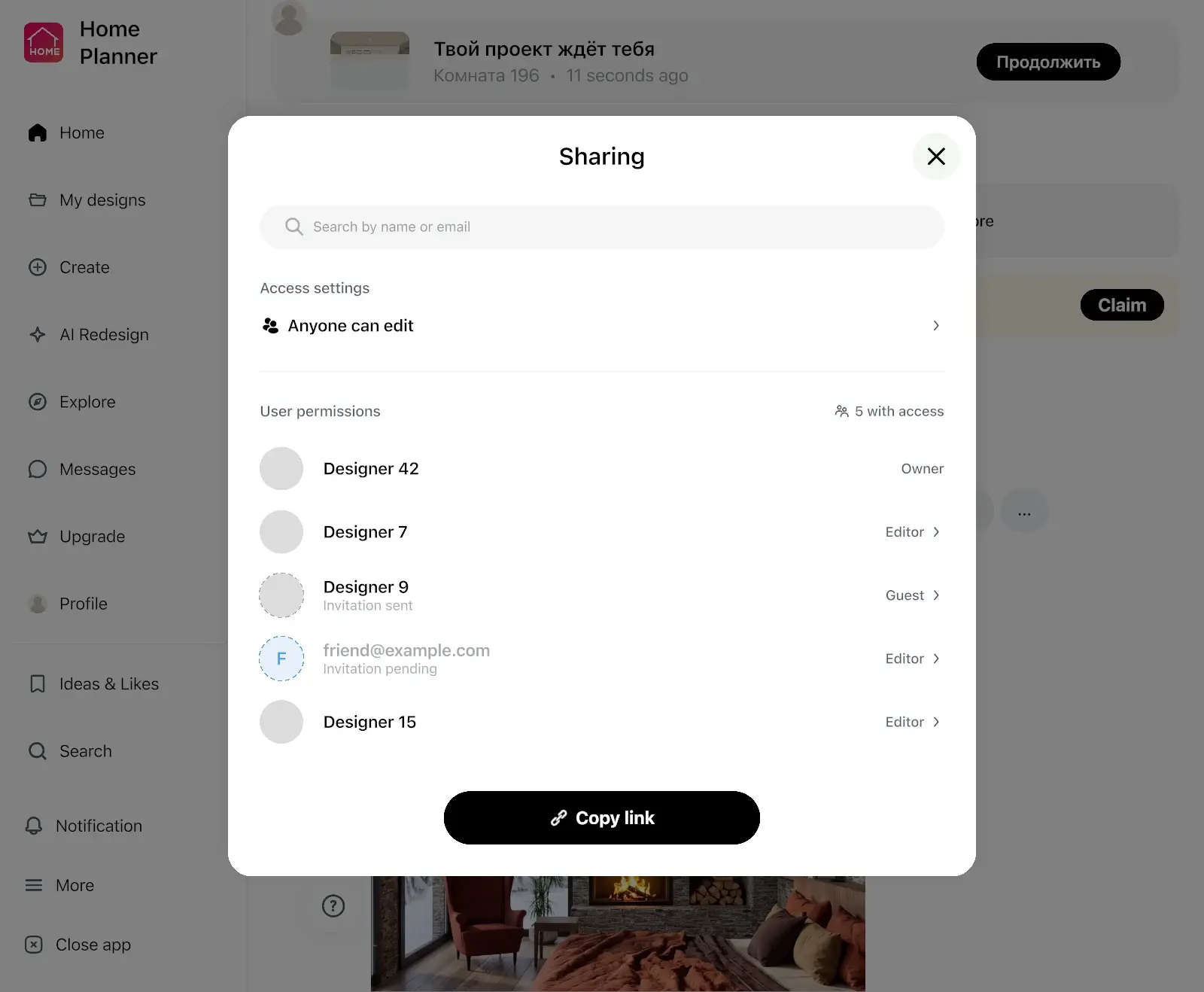
- A link shows your design in a browser, no app needed.
- To edit together, each person needs Home Planner and a sign-in.
- A PDF has the plan with its wall lengths and the shopping list.
- Link, PDF with a watermark and editing together: free
- PDF without a watermark: PRO+
Never designed a room? Your child's is a good first one
Three common doubts, answered.
"I've never designed anything"
Place a bed, a desk and a rug, move them around, and see the result in 3D right away.
"We can't agree on what they'll like"
Make two versions of the room and let your child walk through both in 3D.
"I'm not sure my measurements are right"
Measure with a tape or a laser distance meter, or scan the room.
"When I had a new baby I used it to plan my nursery"
"Amazing for planning spaces. Used this on my whole home, and my parents home, and when I had a new baby I used it to plan my nursery. … it’s amazing and so user friendly. Just figured it out as I went no instructions."
"The AI feature is a game changer. I just uploaded my room and got several style suggestions in seconds. It helped me discover combinations I would never think of myself."
Reviews from the App Store, quoted as written.
Plan the nursery free. Go PRO when every inch counts.
Start free: draw the room, place a crib, a bed and a desk, and see it in 3D. PRO adds exact wall sizes, the full catalog and a renovation cost estimate.
Free
Nothing to pay to start
- Draw the plan on a grid and see it in 3D
- Set the ceiling height
- Part of every catalog category
- Scan a room into a new design and look around it in 3D
- Share a link or a PDF with a watermark, and edit together
- Up to 4 AI redesigns to try
- Up to 10 designs
PRO
For your own home
- Everything in Free
- Type exact room and wall sizes, measure with a laser meter, furnish scanned rooms
- The full catalog
- Renovation cost estimate
- More colors and your own textures
- Up to 20 designs and sync between your devices
PRO renews automatically each billing period unless you cancel. You can turn off auto-renew in your account settings, and PRO stays active until the end of the period you paid for.
Frequently Asked Questions
Yes. The free plan saves up to 10 designs, each one a whole home plan, with a selection from every catalog category and up to 4 AI redesigns to try. PRO adds exact wall sizes, the full catalog, higher AI limits and a renovation cost estimate. PRO+ adds 4K renders, 360° photos and offline mode. See plans and prices
Yes. Add a crib, a changing table, a rocking chair and baby storage, and see the nursery in 3D. When your child grows, save a copy of the design and swap the crib for a bed.
Add your ceiling height, place the bed and look at it in 3D to see the space above it. Every catalog item keeps its real size.
Try a bunk bed on one wall to free the floor for a shared desk, or two twin beds on opposite walls with storage between them. Save a copy of the design for each idea and walk through both in 3D.
Yes. The ceiling height is free to set on every plan. With PRO, type the exact length of every wall in feet and inches or in meters and centimeters, or read wall lengths from a supported laser meter on iPhone, iPad, Android or Mac. On the free plan, you draw the walls on a grid. Follow your device maker's safety instructions, and never point a laser at anyone's eyes.
No — that's beyond what any app can check. Follow official child-safety advice, such as the U.S. Consumer Product Safety Commission guide «Childproofing Your Home», and use the plan to see how close the crib and the beds are to the windows. Childproofing Your Home (CPSC)
Yes, on phones that support AR; iPhones with LiDAR make a detailed scan. On the free plan, scan the room into a new design and look around it in 3D. Furnishing a scanned room needs PRO. You can also draw the room on the grid and furnish it for free. Scanning isn't available on Mac or Windows.
Yes. Take or upload a photo, pick a style, and AI Redesign shows the room with new colors, furniture and decor, keeping the shape of the room. Try AI Redesign
Yes. Home Planner runs on iPhone, iPad, Android, Mac and Windows, and with PRO your designs sync between devices. Scanning works on phones and tablets, not on Mac or Windows. You can also restyle a photo with AI on our website once you sign in. Planning and furnishing happen in the app.
Yes. Send a link and they see the design in a browser. To edit it with you, they need Home Planner on their device and a sign-in.
With PRO+, you can keep designing without an internet connection. AI features and syncing still need the internet.
Yes. Cancel at any time, and PRO stays active until the end of the period you paid for; your designs stay in your account. Refunds for App Store, Google Play or Steam purchases follow that store's refund policy. Bought on our website? Contact support and we'll help with a refund.
You do. Your designs stay in your account, and you can share them by link or export them as a PDF at any time.
Do you design kids' rooms for clients?
PRO is for your own home. For client work, PRO+ adds commercial use, no watermark, 4K renders and a client PDF with an estimate and your logo.
- PRO+
Plan your kids' room before you buy
Draw the room, check the ceiling and the gaps, try the colors, and agree on the plan with your family.
P.S. Choosing between a bunk bed and two twin beds? Put both on the plan tonight and walk through each one in 3D.
More guides:How to Design a Kids Room: 3 Ideas for Zones, Colour and FurnitureHow to Organize a Kids Room So It Stays TidyTeen Room Ideas: 9 Ways to Make Space for Study, Games and FriendsHow to Visualize Furniture in Your Room Before You Buy
Home Planner is not affiliated with, endorsed or sponsored by Apple, Google, Microsoft or Valve; their names and marks belong to their owners. Android is a trademark of Google LLC. iPhone, iPad and Mac are trademarks of Apple Inc., registered in the U.S. and other countries. Steam and the Steam logo are trademarks and/or registered trademarks of Valve Corporation in the U.S. and/or other countries. Windows is a trademark of the Microsoft group of companies. Other trademarks are the property of their respective owners.